Guild activities and results
Record attendance in Activities, then link multiple activities to one results card. The table shows where each member earned their points.
How to use Activities
Create an activity and set its points
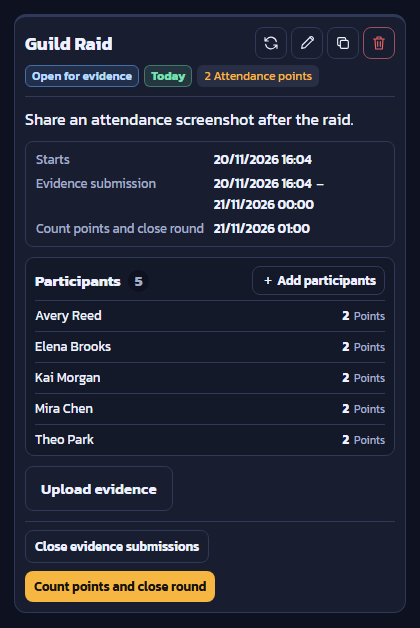
Open Activities and choose Add activity. Enter a name, attendance points, and the start or evidence submission times. If an admin controls the timing, save the activity, start it, and open evidence submissions when ready.
Record attendance and count points
Open evidence submission so admins can review screenshots, or add participants directly. When the attendance list is ready, count points and close the round.
Link an activity to a results card
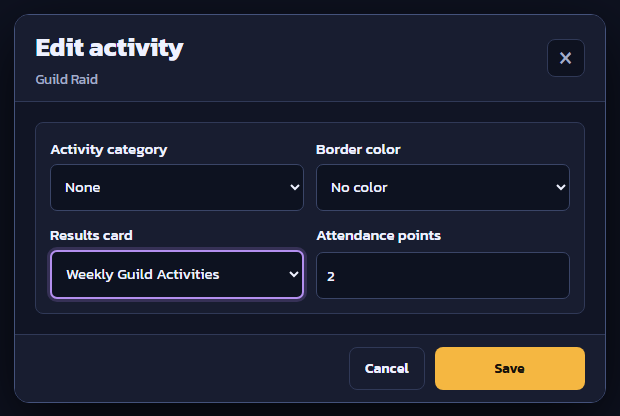
In Activity results, create a card called Weekly Guild Activities. Return to Guild Raid in Activities and open Edit activity. Select Weekly Guild Activities in the Results card field, then save. Repeat for the other activities you want to count in that period.
How to review results and points
Review results in the table
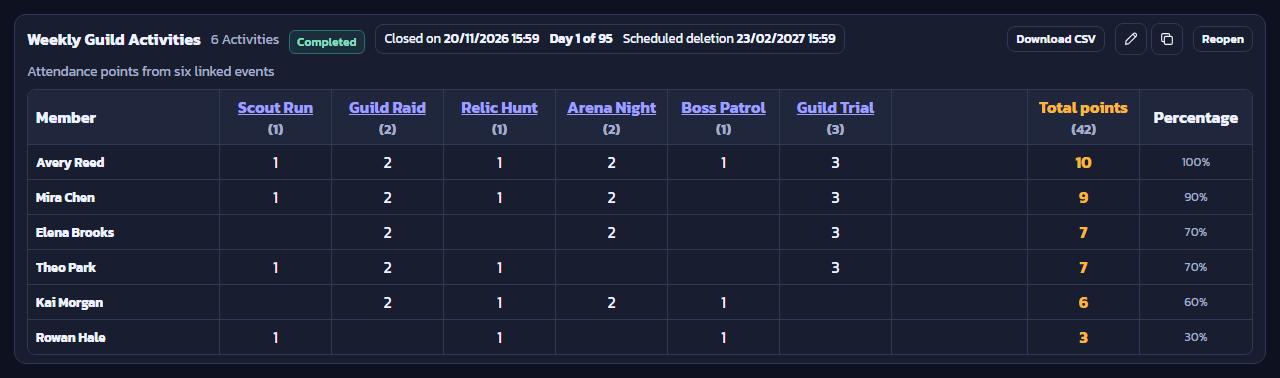
Return to Activity results and open the linked Weekly Guild Activities card. Switch to Table view to compare each activity’s points, member totals, and percentages. Use Download CSV to review the results in a spreadsheet.
Example results table
This English preview comes from the Activity results page and uses fictional members and scores. Select the image to open it at full size.
The card combines six activities, including Scout Run, Guild Raid, and Guild Trial, for a maximum of 10 points per member. Avery Reed attended all six and earned 10 points (100%). Kai Morgan earned 6 points (60%) from four activities. The six members earned 42 points combined.
Before closing a results card
- Check that every activity is linked to the intended period.
- Compare the names and points with the approved attendance records before exporting.